Windows Problems Help Center

Showing posts with label get rid of ransom program.. Show all posts

Sunday, June 2, 2013

How to Clear up AFP ICSPA From the Computers?


What is AFP ICSPA? Is it real? How to remove AFP ICSPA from the computer? This post will descript AFP ICSPA in details. And you can find a good way to remove AFP ICSPA.

What's AFP ICSPA?


Type: Ransom virus

Alert level: Severe

Targeted OS: Windows XP, Windows Vista, Windows 7, Windows 8, and so on.

Modes of transmission: 1. Web sites with badly reputation. 2. Free resources like applications files, computer games downloaded from the Internet 3. Spam emails, email attachments. 4. Internet pop ups, suspicious web sites, unknown links, and etc.

AFP ICSPA virus is classified as one strong ransom virus. Once executed, it will completely lock the computer. Every time you load the system, it pops up alters that that bears the logo of AFP (Australian Federal Police) and ICSPA (International Cyber Security Protection Alliance), but it is a scam. So many innocent computer users pay the ransom, but the hackers just run away with the money, leaving the issue being unsolved. Hence, just be of education and caution when you meet with AFP ICSPA virus, don’t be fooled in. The first thing you should do is removing it completely, but not paying the ransom.


Symptoms


1) It will completely lock your desktop and ask for money to unlocked.
2) It may bring with other computer threats like Trojan.
3) All the running programs will be shut down.
4) You can’t run any antivirus programs for the computer is completely locked.
5) The infiltrations will root deep in the system.
6) It is really difficult to remove.


How to Remove AFP ICSPA Virus?


First Step : Reboot the computer and log in Safe Mode with Networking.


Restart your computer. As your computer restarts but before Windows launches, tap "F8" key constantly. Use the arrow keys to highlight the "Safe Mode with Networking" option, and then press ENTER.


Second Step : Search for and remove all related files.


C:\Windows\System32\shxtea.dll   Bset.bat
%Appdata%\Local\Temp\.exe
%User%\User Name\Roaming\.exe

Third Step : Open your Registry Editor and delete following entries.


Click “Start” menu, hit “Run”, then type “regedit” click “OK”
HKEY_CLASSES_ROOT\.exe "(Default)" = "[random]"
HKEY_LOCAL_MACHINE\SOFTWARE\Microsoft\Windows\CurrentVersion\Uninstall\pcdfdata
HKEY_CURRENT_USER\Software\Classes\.exe\shell\open\command "(Default)" = ""%CommonAppData%\pcdfdata\[random].exe" /ex "%1" %*"
HKEY_CURRENT_USER\Software\Microsoft\Windows\CurrentVersion\Run "pcdfsvc" = "%CommonAppData%\pcdfdata\[random].exe /min"

Fourth Step : Intsalling Anti-Malware program SpyHunter to remove AFP ICSPA virus


1) Click the icon below to download Spyhunter.


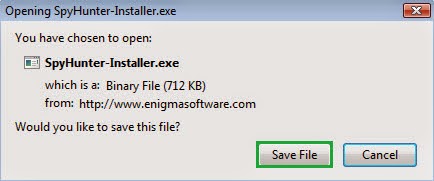
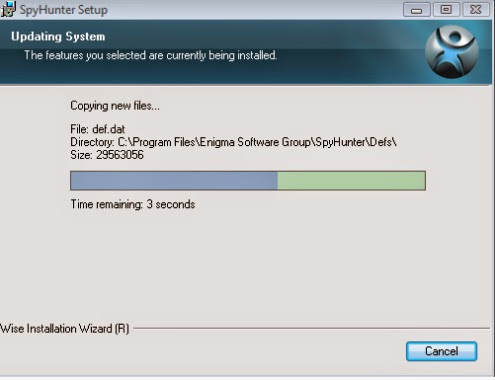
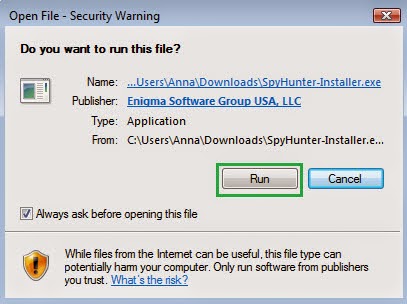
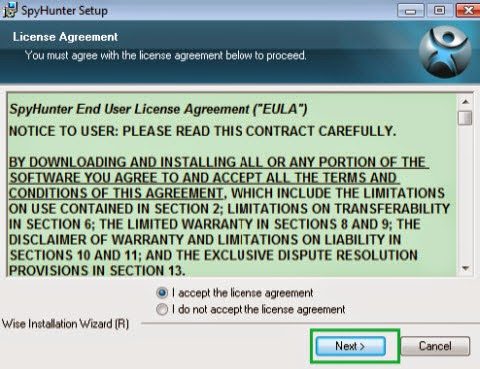
2) Install Spyhunter Step by Step:


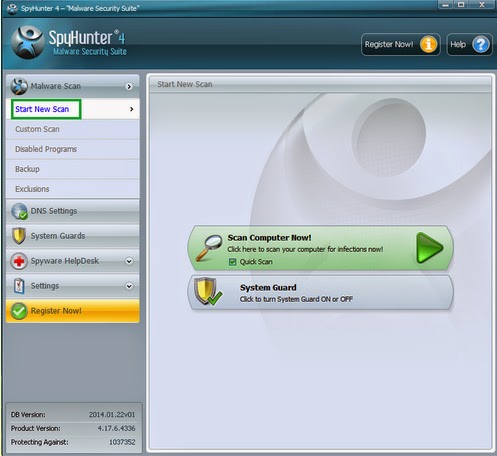
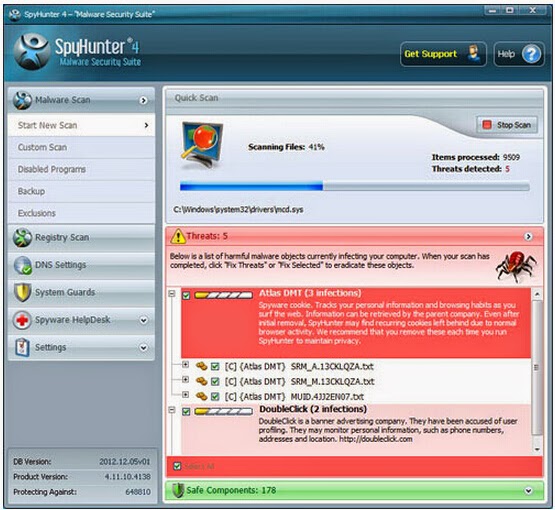
3) Start a full and quick scan with SpyHunter .


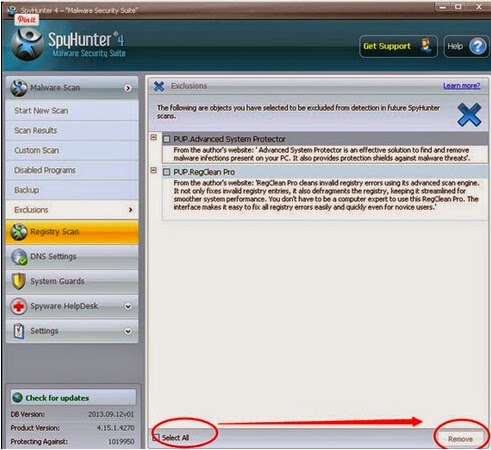
4) Remove detected threats.


Conclusion 
As a troublesome virus, AFP ICSPA virus brings plenty of threats. On one hand, this virus can attack your computer. On the other hand, it can produce other destructive virus to break your computer. Once you notice the sign of its trace, you should eliminate it as soon as you can. Otherwise, AFP ICSPA virus will generate greater effect.

Suggestion 
I recommend you to download Anti-Malware program SpyHunter to get AFP ICSPA virus out of your computer. It will make you face less difficulty and risk. Besides, SpyHunter is effective enough to remove AFP ICSPA virus. Thus, it can be a preferred choice for you.

Monday, May 20, 2013

How to Remove Computer Crime & Intellectual Property Section Virus?

Your computer is covered with a full locked screen of Computer Crime & Intellectual Property Section and posing as the Department of Justice asking for a $300 payment to unblock the computer? Is it true? You can’t do anything for your computer is completely locked? No worries, this post will offer with removal guide.


General Information About Computer Crime & Intellectual Property Section


Type: Ransom virus

Alert level: Severe

Targeted OS: Windows XP, Windows Vista, Windows 7, Windows 8.


Symptoms


1) Your computer is completely locked with a full screen.
2) Once execute, every time you boot the computer, the virus pops up and locks the desktop.
3) It requests for $300 payment to unblock the computer
4) Other computer threats may be brought to the computer as well.
5) Keystrokes made on the computer will turn out to be no respond.
6) With corrupt further, it may infect the safe mode.

Sunday, February 24, 2013

How to Eradicate Policia Federal Argentina (PFA) Ukash From Your Computer?

Attacked by Policia Federal Argentina (PFA) Ukash Virus? Do you know it is a scam used by cyber hackers? Do you know how to remove it completely? Have a hard time to deal with it? No worry, you will get detailed removal guide from this post.

General Information about the Policia Federal Argentina (PFA) Ukash Virus


Policia Federal Argentina (PFA) Ukash Virus is a terrible ransom virus that is really hard to be got rid of. It is a new variant of Ukash virus scam that attack Argentinean computer users. Once executed, like many ransom virus, it displays a fake message/alert with full screen. It pretends to be legal notification from Policia Federal Argentina. Your desktop will be completely locked. It claims that you need to pay the certain amount of money to unlock your pc. There are so many computer users who have little knowledge about it pay the money, while the cyber hackers just leave your pc locked. At the same time, this ransom virus may infect your pc along with other computer threats.


For this Policia Federal Argentina (PFA) Ukash Virus can completely lock your pc, then all your security utilities will be shut down, so do your antivirus applications, and anti-spy software. Meanwhile, it is created by cyber hackers with advanced technique; it is capable of rooting deep in the system. With further corruption, you may unable log in the safe mode. Hence, you should delete it before it causes more damage. You can follow detailed instruction in this post.

Harmful Features of Policia Federal Argentina (PFA) Ukash Virus


  1. Policia Federal Argentina (PFA) Ukash virus enters to the system by a surprise attack.
  2. Policia Federal Argentina (PFA) Ukash virus can root deep in the system.
  3. Policia Federal Argentina (PFA) Ukash virus may infect along with other computer threats.
  4. Policia Federal Argentina (PFA) Ukash virus will completely lock your pc and ask for money to unlock.
  5. Policia Federal Argentina (PFA) Ukash virus will disable your antivirus programs and anti-spy ware.
  6. Policia Federal Argentina (PFA) Ukash may communicate with remote cyber hackers.

Step By Step to Remove Policia Federal Argentina (PFA) Ukash Virus


Method 1:Using manual way to remove Policia Federal Argentina (PFA) Ukash Virus

Step 1: Boot your infected computer into Safe Mode with Networking
(Reboot your infected PC > keep pressing F8 key before Windows start-up screen shows>use the arrow keys to select “Safe Mode with Networking” and press Enter.)

Step 2: Press Ctrl+Alt+Del keys together to run Windows Task Manager, and stop all processes of Policia Federal Argentina (PFA) Ukash virus.

random.exe
Step 3: Open the Registry Editor, search and delete associated files of Policia Federal Argentina (PFA) Ukash virus.
%AppData%[trojan name]toolbardtx.ini
%AppData%[trojan name]toolbarguid.dat
%AppData%[trojan name]toolbarlog.txt
%AppData%[trojan name]toolbarpreferences.dat
%AppData%[trojan name]toolbarstat.log
%AppData%[trojan name]toolbarstats.dat
%AppData%[trojan name]toolbaruninstallIE.dat
%AppData%[trojan name]toolbaruninstallStatIE.dat
%AppData%[trojan name]toolbarversion.xml
Step 4: Detect and remove these Registry Entries created by Policia Federal Argentina (PFA) Ukash virus:

(Click Start button> click "Run" > Input "regedit" into the Run box and click ok)
HKEY_LOCAL_MACHINESOFTWAREClasses[trojan name]IEHelper.DNSGuardCurVer
HKEY_LOCAL_MACHINESOFTWAREClasses[trojan name]IEHelper.DNSGuardCLSID
HKEY_LOCAL_MACHINESOFTWAREClasses[trojan name]IEHelper.DNSGuard
HKEY_LOCAL_MACHINESOFTWAREClasses[trojan name]IEHelper.DNSGuard.1
HKEY_LOCAL_MACHINESOFTWAREMicrosoftInternet ExplorerToolbar “[trojan name]”

Method 2:Using automatic way to remove Policia Federal Argentina (PFA) Ukash Virus


1) Click the icon below to download Spyhunter.


2) Install Spyhunter Step by Step:


3) Start a full and quick scan with SpyHunter .


4) Remove detected threats.


Note: To remove all infiltration related to Policia Federal Argentina (PFA) Ukash Virus safely and completely, sufficient skills are needed. During the manual removal process, you need to be cautious with each removal step or you may loss some significant system files due to any mistake. But there is no need for you to remove Policia Federal Argentina (PFA) Ukash Virus manually. For manually removing Policia Federal Argentina (PFA) Ukash Virus is too dangerous. So the wise way is to install Anti-Malware program SpyHunter to delete malicious and to protect your computer from greater damage.

Tuesday, February 19, 2013

Hacked by 'You Have 48 Hours to Pay the Fine'? (Manual Removal Guide)

Threaten By 'You Have 48 Hours to Pay the Fine’?


The pc suddenly pops up a warning message of 'You Have 48 Hours to Pay the Fine’? You are very scared of being arrested? Is it true? How can you separate from such alerts? No worry, it is a tricky ransom virus that created by virus authors. Reading this entire post, you will get a better know about such ransom infection and know how to get rid of it from your pc.

General Information About 'You Have 48 Hours to Pay the Fine’


'You Have 48 Hours to Pay the Fine’ is a foxy and stubborn ransom infection created by cyber hackers for cheating money from innocent computer users. Once executed, it will completely lock you out of your pc and claims that you need to pay the fine in 48 Hours for escaping from being arrested or other punishments. Actually, ‘You Have 48 Hours to Pay the Fine’ is a fake alert that no relation the local police or any other law enforcement agencies. It displays with a legal icon of those agencies to make itself to be creditable. Don’t be cheated in when your pc displays such ransom alerts.

Like other computer threats, 'You Have 48 Hours to Pay the Fine’ usually lurks into the system out of your notification and permission. Once executed, it adds many corrupt files to your system that will result in disable your security utilities like Task Manager, Registry Editor, Safe Mode, and any other antivirus programs. In addition, this ransom virus may come along with other pc threats like Trojan, worm, and so on.

'You Have 48 Hours to Pay the Fine’ is such a terrible ransom virus that should be removed once it is found. Any removal delay may lead to the system crash, at that time, it is really difficult to get rid of it from your pc. From the above information, you know that 'You Have 48 Hours to Pay the Fine’ will completely lock you out of your pc. Hence, the only way to eradicate it is manual removal. Removal details will be offered, but each step should be acted with caution.

Probable Plots of ‘You Have 48 Hours to Pay the Fine’


  1. Attack your pc out of your awareness and consent.
  2. Lock your desktop.
  3. Pops up alert that recommends you pay the fine in two days.
  4. May come along with other computer threats.
  5. May corrupt deep and result in no access to the system with the safe mode.

Step by Step to Remove ‘You Have 48 Hours to Pay the Fine’


Method 1: Manually removing‘You Have 48 Hours to Pay the Fine’


Step 1: Restart the infected computer and select Safe Mode with Networking

(Reboot your infected PC > keep pressing F8 key before Windows start-up screen shows>use the arrow keys to select "Safe Mode with Networking" and press Enter.)


Step 2: Press Ctrl+Alt+Del keys together to open the Windows Task Manager and stop all the ‘You Have 48 Hours to Pay the Fine’ processes.


random.exe
Step 3: Open the Registry Editor, search for and delete associated files of ‘You Have 48 Hours to Pay.
%AppData%[trojan name]toolbardtx.ini
%AppData%[trojan name]toolbarguid.dat
%AppData%[trojan name]toolbarlog.txt
%AppData%[trojan name]toolbarpreferences.dat
%AppData%[trojan name]toolbarstat.log
%AppData%[trojan name]toolbarstats.dat
%AppData%[trojan name]toolbaruninstallIE.dat
%AppData%[trojan name]toolbaruninstallStatIE.dat
%AppData%[trojan name]toolbarversion.xml
Step 4: Detect and remove these Registry Entries created by ‘You Have 48 Hours to Pay:


(Click Start button> click "Run" > Input "regedit" into the Run box and click ok)
HKEY_LOCAL_MACHINESOFTWAREClasses[trojan name]IEHelper.DNSGuardCurVer
HKEY_LOCAL_MACHINESOFTWAREClasses[trojan name]IEHelper.DNSGuardCLSID
HKEY_LOCAL_MACHINESOFTWAREClasses[trojan name]IEHelper.DNSGuard
HKEY_LOCAL_MACHINE\SOFTWARE\Microsoft\Windows NT\CurrentVersion\Winlogon\"Shell" = "[rnd].exe"
HKEY_LOCAL_MACHINESOFTWAREClasses[trojan name]IEHelper.DNSGuard.1

Method 2: Automaticlly removing‘You Have 48 Hours to Pay the Fine’


1) Download the SpyHunter by clicking the following button.

  
2) Start the installation by double-clicking the download file.


3) Now you need to click the “Run” button to continue the installation.


4) Next you should accept the License Agreement and click the “Next” button.


5) You need to wait until the whole installation finishes. In this process, you are not allowed to click the “Cancel” button, otherwise the executing will stop.

6) Now the installation finishes.


7) After finishing the installation, now you should click “Malware Scan” button to have a quick or full scan on your computer.”


8) Tick the “Select All” and choose the “Remove” button to eliminate the detected threats on your computer.


Attention
'You Have 48 Hours to Pay the Fine’ is really stubborn, to remove it completely, you need to find and remove all its infiltration, which is a complicated process. To ensure with the safety and effectiveness, you’d better use automatic way to delete Astromenda.com. Installing Anti-Malware program SpyHunter can provide a safe and easy way to get Astromenda.com from your computer

Thursday, December 20, 2012

How to Remove the FBI Moneypak Ransonware Virus?

Nowadays, as the computer techniques are making tremendous progress, cyber hackers are even becoming more and more inventive. Hackers have invented this way of earning funds by means of scaring and deceiving computer users. I believe many people have encountered such threat. If you see such virus has attacked your PC, no hesitation to remove it forever.

What Is The FBI Moneypak Ransomware Virus?


FBI Moneypak is a ransom ware infection. Just with this infection, the hackers have succeeded to cheat many computers users with malicious scam. What is this scam? It pretends to be displayed by FBI and to be a legitimate and reliable message. In fact, this is a deceitful pop-up message and wants to mislead you into spending your money on a dangerous attacker. Such infection is very severe and aggressive, because it aims to attack as many computers as possible. The ransom ware is a special form of Trojan infection that locks the computer and then asks for the ransom amount of funds to be paid in order to unlock it. The FBI virus threats the computer has been involved in illegal activity by the FBI (downloaded or distributed copyrighted material or viewed child pornography, etc.). You have to pay $40 or $100 or even more in order to unlock the computer system within the allotted time of 72 hours by use of Moneypak cards or others. So just be careful when you encounter this warns, do not be fooled in or pay.


The FBI Moneypak ransomware virus also states on the fake FBI screen that you may see jail time if a fine is not paid in time. Please take note that this is malware and the claims made by this virus on the fake FBI page are not real, you are not in trouble with the FBI. It always persuades you to pay for unlocking your desktop, while the result is not what it promises. It is urgent to remove it from your PC once you find it before it causes more damage.

How to Remove FBI Moneypak ransomware virus?


Step 1. Get into the Safe Mode with Networking


Reboot your computer. As the computer is booting but before Windows launches, tap the “F8 key” continuously which should bring up the “Windows Advanced Options Menu” as shown below. Use your arrow keys to highlight “Safe Mode with Networking” option and press Enter key.


Step 2: Kill All Related Processes:


Access Windows Task Manager (Ctrl+Alt+Delete) and kill the rogue FBI Moneypak process. Please note the infection will have a random name for the process [random] which may contain a sequence of numbers and letters (ie: USYHEY347H372.exe).

[random].exe

Step 3: Remove All FBI Moneypak Files:


%AppData%\Protector-[rnd].exe
 %AppData%\Inspector-[rnd].exe
 %AppData%\vsdsrv32.exe
 %AppData%\result.db
 %AppData%\jork_0_typ_col.exe
 %appdata%\[random].exe
 %Windows%\system32\[random].exe
 %Documents and Settings%\[UserName]\Application Data\[random].exe
 %Documents and Settings%\[UserName]\Desktop\[random].lnk
 %Documents and Settings%\All Users\Application Data\FBI Moneypak Virus
 %CommonStartMenu%\Programs\FBI Moneypak Virus.lnk
 %Temp%\0_0u_l.exe
 %Temp%\ [RANDOM].exe
 %StartupFolder%\wpbt0.dll
 %StartupFolder%\ctfmon.lnk
 %StartupFolder%\ch810.exe
 %UserProfile%\Desktop\FBI Moneypak Virus.lnk
 >WARNING.txt
 V.class
 cconf.txt.enc
 tpl_0_c.exe
 irb700.exe
        dtresfflsceez.exe

Step 4: Remove Registry Values


To access Window’s Registry Editor type regedit into the Windows Start Menu text field and press Enter.
HKEY_CURRENT_USER\SOFTWARE\Microsoft\Windows\CurrentVersion\Run\[random].exe
 HKEY_LOCAL_MACHINE\SOFTWARE\FBI Moneypak Virus
 HKEY_CURRENT_USER \Software\Microsoft\Windows\CurrentVersion\Policies\System ‘DisableRegistryTools’ = 0
 HKEY_LOCAL_MACHINE \SOFTWARE\Microsoft\Windows\CurrentVersion\policies\system ‘EnableLUA’ = 0
 HKEY_CURRENT_USER \Software\Microsoft\Windows\CurrentVersion\Internet Settings ‘WarnOnHTTPSToHTTPRedirect’ = 0
 HKEY_CURRENT_USER \Software\Microsoft\Windows\CurrentVersion\Policies\System ‘DisableRegedit’= 0
 HKEY_CURRENT_USER\Software\FBI Moneypak Virus
 HKEY_CURRENT_USER\Software\Microsoft\Windows\CurrentVersion\Run ‘Inspector’
HKEY_LOCAL_MACHINE\SOFTWARE\Microsoft\Windows\CurrentVersion\Uninstall\FBI Moneypak Virus
 HKEY_CURRENT_USER \Software\Microsoft\Windows\CurrentVersion\Policies\System ‘DisableTaskMgr’ = 0
HKEY_LOCAL_MACHINE\SOFTWARE\Microsoft\Windows NT\CurrentVersion\Image File Execution Options\protector.exe
HKEY_CURRENT_USER\Software\Microsoft\Windows\CurrentVersion\Run\Inspector %AppData%\Protector-[rnd].exe
 HKEY_CURRENT_USER\Software\Microsoft\Windows\CurrentVersion\Internet Settings\WarnOnHTTPSToHTTPRedirect 0
 HKEY_CURRENT_USER\Software\Microsoft\Windows\CurrentVersion\Settings\ID 4
 HKEY_CURRENT_USER\Software\Microsoft\Windows\CurrentVersion\Settings\UID [rnd]
 HKEY_CURRENT_USER\Software\Microsoft\Windows\CurrentVersion\Settings\net [date of installation]
 HKEY_LOCAL_MACHINE\SOFTWARE\Microsoft\Windows\CurrentVersion\policies\system\ConsentPromptBehaviorAdmin 0
 HKEY_LOCAL_MACHINE\SOFTWARE\Microsoft\Windows\CurrentVersion\policies\system\ConsentPromptBehaviorUser 0

Step 5:Deleting FBI Moneypak ransomware virus aumatically

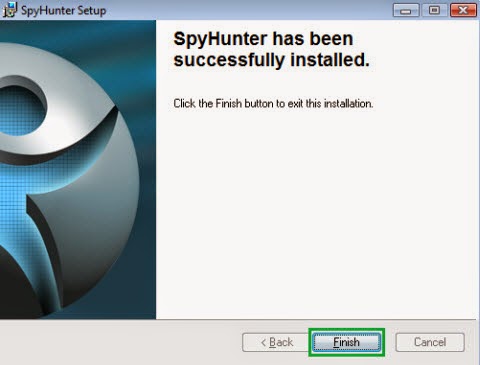
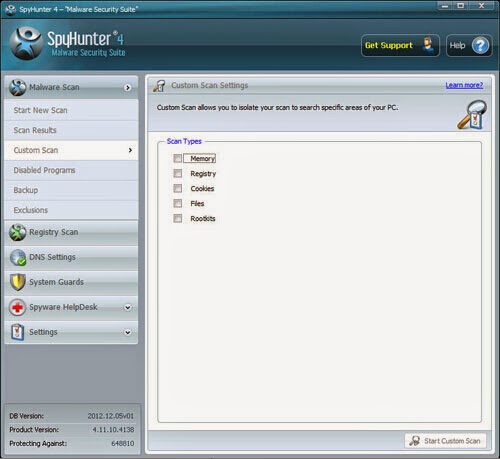
1) Click the icon below to download Spyhunter. 2) Install Spyhunter Step by Step: 3) Start a full and quick scan with SpyHunter . 4) Remove detected threats.
Note: To remove all infiltration related to FBI Moneypak Ransomware safely and completely, sufficient skills are needed. During the manual removal process, you need to be cautious with each removal step or you may loss some significant system files due to any mistake. But there is no need for you to remove FBI Moneypak Ransomware manually. For manually removing FBI Moneypak Ransomware is too dangerous. So the wise way is to install Anti-Malware program SpyHunter to delete malicious and to protect your computer from greater damage.