Windows Problems Help Center

Showing posts with label delete rogue program. Show all posts

Saturday, January 11, 2014

How to Uninstall Windows Virtual Protector Rogue Program?


Windows Virtual Protector installs to your computer without any approval? Have trouble removing it as it is quite stubborn? Is there a reliable solution? You have come to the right place, you will get removal instructions here.

Know More About Windows Virtual Protector 


Type: rogue program

Alert level: Severe

Targeted OS: Windows XP, Windows Vista, Windows 7, Windows 8.

Tuesday, January 7, 2014

How to Uninstall Windows Accelerator Pro Fake Antivirus From Computer?

A program named Windows Accelerator Pro installed to your computer against your will? It runs a scan out of interaction whenever you load the system? It lists some risks, are they real? Have trouble removing it? This post will offer with  removal instructions that will be helpful for you.

Know More About Windows Accelerator Pro 


Type: Rogue program

Alert level: Severe

Targeted Browsers:Internet Explorer, Firefox, Google Chrome, and so on.

Targeted OS: Windows XP, Windows Vista, Windows 7, Windows 8.

Tuesday, December 10, 2013

How to Uninstall Smart Guard Protection Rogue Program From Computers?

You can recall when and how Smart Guard Protection gets into your computer system? It runs a scan automatically and show lots of computer virus when you load the system? Are they real? What should be done to remove it from the computer? You will know how to deal with it by reading this post entirely and carefully.

Let's Know More About Smart Guard Protection


Type: rogue program

Alert level: Severe

Targeted OS: Windows XP, Windows Vista, Windows 7, Windows 8.

Sunday, December 8, 2013

How to Uninstall AntiVirus Plus 2014 Rogueware?


Your computer is infected with AntiVirus Plus 2014 Rogueware, and can't get rid of it?  What should be done to clean it from your computer? You will get removal instructions here.

General Information About AntiVirus Plus 2014 Rogueware


Type: rogue program

Alert level: Severe

Targeted OS: Windows XP, Windows Vista, Windows 7, Windows 8.

Friday, December 6, 2013

How to Remove windows active hotspot?

Active HotSpot installed to your computer out of permission? It runs and scans your computer whenever you load the system? It lists multiple computer threats, are they true? No worries, you will know more about it by reading this post entirely and carefully.

Know More About Windows Active HotSpot


Type: rogue program

Alert level: Severe

Targeted OS: Windows XP, Windows Vista, Windows 7, Windows 8.


Active HotSpot is a rogue program that installs to targeted computers without any consent. It may come along with some applications, drivers, and so on that are easily to be downloaded from the Internet. When you install those programs, such a rogue program comes inside your system as well.  Normally, such a rogue program is bundled with other computer threats like Trojan horse to corrupt further.

When Active HotSpot enters to your computer successfully, it will run a scan out of interaction whenever you load the system. It just disguises as a legitimate antivirus program that will list multiple computer threats after running a scan. To clean all the threats detected from the computer, it advises you to purchase a licensed and powerful version to fix all the computer issues. In fact, there is no computer threats, all of the detected ones are bogus. Such a rogue programs crated for misleading computer users into buying the so-call powerful antivirus. Therefore, you should delete it once you notice it appears on your computer.

Windows Active HotSpot is Rather Harmful


1. It comes with a surprise attack.
2. It may come along with other kinds of computer threats.
3. It may modify registry entries for running automatically whenever you load the system.
4. It run a scan out of any interaction and list lots of computer threats that are bogus.
5. It lures you to purchase its program to make the computer clean.
6. It may stop or disable legitimate security programs
7. It slows down computer  greatly.
8. It makes the computer vulnerable.

Instructions on Removing Windows Active HotSpot


Method 1: Deleting Windows Active HotSpot manually


1. Press CTRL+ALT+DEL keys to open Windows Task Manager, and then end all Active HotSpot running processes.

2. Seek and clear all  files associated with Active HotSpot:

 %AppData%\NPSWF32.dll
%AppData%\Protector-
%AppData%\result.db
3. Open the Registry Editor, then search for and remove all related Active HotSpot registry entries.
Click Start button> click “Run” > Input “regedit” into the Run box and click ok)
 HKEY_CURRENT_USER\Software\Microsoft\Windows\CurrentVersion\Internet Settings “WarnOnHTTPSToHTTPRedirect” = 0
HKEY_CURRENT_USER\Software\Microsoft\Windows\CurrentVersion\Policies\System “DisableRegedit” = 0
HKEY_CURRENT_USER\Software\Microsoft\Windows\CurrentVersion\Policies\System “DisableRegistryTools” = 0
HKEY_CURRENT_USER\Software\Microsoft\Windows\CurrentVersion\Policies\System “DisableTaskMgr” = 0
HKEY_LOCAL_MACHINE\SOFTWARE\Clients\StartMenuInternet\IEXPLORE.EXE\shell\open\command “(Default)” = ‘”%LocalAppData%\kdn.exe” -a “C:\Program Files\Internet Explorer\iexplore.exe”


Method 2: Deleting Windows Active HotSpot automatically


Spyhunter is a powerful and popular anti-malware program. It can help you a lot in deleting Websearch.eazytosearch.info .

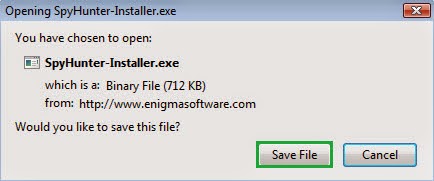
1) Click the icon below to download Spyhunter freely inside.



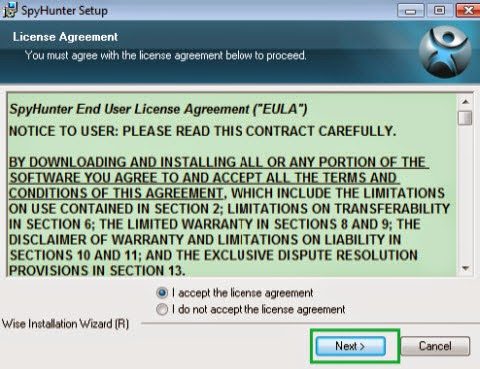
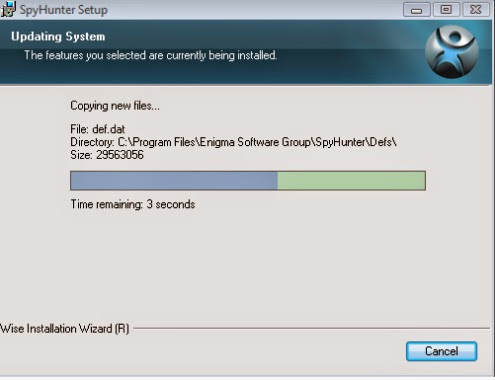
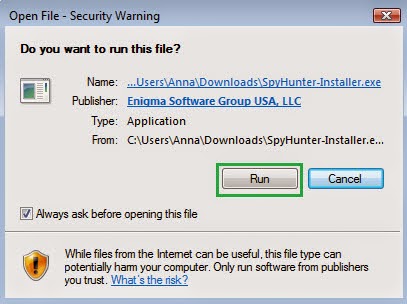
2) Install Spyhunter Step by Step:


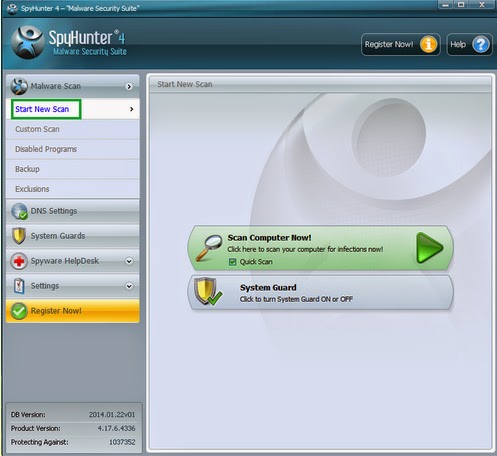
3) Start a full and quick scan with SpyHunter .


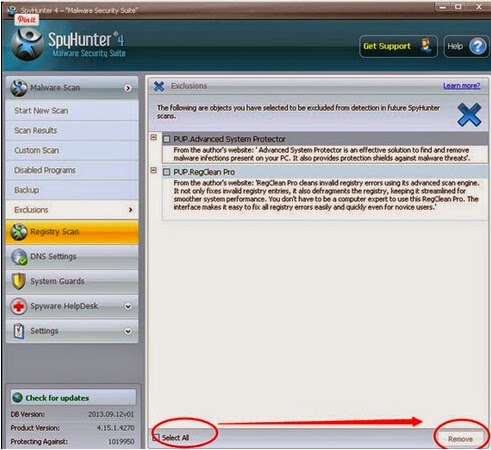
4) Remove detected threats.


Summary 
Active HotSpot is really dangerous Trojan horse. If you don’t remove it timely, it will generate more serious effect. So it is wise for you to get rid of Active HotSpot once you notice it appears on your computer.

Note 
Active HotSpotvirus is foxy and stubborn, so it is not easy for you to remove it manually. In addition, manual removal way takes a risk of losing your computer’s important applications. It is not worthy and wise for you to take this risk. Installing Anti-Malware program SpyHunter is the best way for you. SpyHunter can detect and remove malware or virus automatically. Without hesitation, just download it.

Wednesday, August 28, 2013

How to Install Antivirus Security Pro? (Manual Removal Guide)


You don’t install Antivirus Security Pro, but it comes to your computer and runs automatically? Have no ideas about how to remove Antivirus Security Pro from your computer? You have come to the right place, you will get detailed removal guide.

Antivirus Security Pro Description


Type: Rogue program

Alert level: Severe

Targeted Browsers:Internet Explorer, Firefox, Google Chrome, and so on.

Targeted OS: Windows XP, Windows Vista, Windows 7, Windows 8.


Antivirus Security Pro is a rogue program that acts like many other fake antivirus programs. Your computer may be infected with it when you download some freeware or shareware from the Internet, open some email attachments, visit some hacked web sites, share some corrupt files with others, and so on.
When Antivirus Security Pro installs on the computer successfully, every time you load the system, it will run automatically and take auto scan of the computer. It acts like other legitimate security programs; it will show with lots of computer threats after scanning. In fact, all the computer threats it lists are bogus. So many computer users think that their computer is infected severely. It states that you need to purchase the full version of Antivirus Security Pro for removing all the detected computer threats. Don’t be taken in, what you should do is removing Antivirus Security Pro completely from your computer.

Thursday, May 30, 2013

How to Remove System Doctor 2014 Completely?

Don’t know when and how System Doctor 2014 lurks into your computer? Have a hard time removing it from your computer? What is the best way to uninstall System Doctor 2014 completely? This post will do you a favor.


What is System Doctor 2014?


Type: Malware
Alert level: Severe
Targeted OS: Windows XP, Windows Vista, Windows 7, Windows8.
Transmission Modes: 1)Free resources downloaded from the Internet. 2)Corrupt web sites, unknown links, pop ups. 3) Spam email attachments. 4) Social network.

System Doctor 2014 is a Rogue Antivirus program that is attacking many computer users from all over the world. It acts like the real security programs. Every time you load the system, it will run automatically and do auto scan. So many innocent computer users think that the computer is infected with severe compute threats for System Doctor 2014 keep showing a long list of viruses, but they all are bogus.


Friday, April 12, 2013

How to Remove System Care Antivirus 3.7.32?(Detailed Uninstall Guide)

Name: System Care Antivirus 3.7.32
Attribute type: rogue antivirus program
Targeted operating systems: Windows XP, Windows Vista, Windows 7
Risk Coefficient:Severe \ High Level


Know More About System Care Antivirus 3.7.32


System Care Antivirus 3.7.32 is a new rogue antivirus program that can attack ransom system. When it enters to your computer successfully, it can run automatically by modifying some of your registry entries. Then, it will run and take auto scan of your computer when you have logged in the system. It will keep popping up alert/message tells you there are some threats on your computer, while, all the threats are fabricated. When you follow its instructions to remove all “the detected threats”, it claims that the existing version of System Care Antivirus 3.7.32 is not powerful enough, and you need to pay for the full version of System Care Antivirus 3.7.32 for cleaning up all the existing threats.

Don’t be taken in to pay any advised antivirus programs. System Care Antivirus 3.7.32 is in itself a rogue malware. Besides, when you install those so-called antivirus programs, it may come along with other malware, Trojan, adware, and so on. When you receive any pop ups from System Care Antivirus 3.7.32, what you should take actions are check and uninstall it from computer. You can follow detailed removal guide in this post to remove System Care Antivirus 3.7.32.

System Care Antivirus 3.7.32 Screenshot


Probable Plots of System Care Antivirus 3.7.32 Harmful Symptoms


1. System Care Antivirus 3.7.32 will come to your computer with a surprise attack.
2. System Care Antivirus 3.7.32 may bring other computer threats as well.
3. System Care Antivirus 3.7.32 will run automatically when you have logged in the system.
4. System Care Antivirus 3.7.32 will do auto scan and display fake alert/ message.
5. System Care Antivirus 3.7.32 violates your privacy and compromises your security.


How to Remove System Care Antivirus 3.7.32?


Method 1: Manually Remove System Care Antivirus 3.7.32


In order to get rid of System Care Antivirus 3.7.32, the most effective way will be manual removal. But you should be cautious with each manual removal step. Here are detailed instructions:
step1: Use Ctrl+Alt+Del or Ctrl+Shift+Esc to open the task manager and stop all System Care Antivirus 3.7.32 processes.

Protector-[Random].exe
step2: Search and remove all related files of System Care Antivirus 3.7.32:
%AppData%\NPSWF32.dll
%AppData%\result.db
%Desktopdir%\System Care Antivirus.lnk
%Programs%\System Care Antivirus\System Care Antivirus.lnk
step3: Delete all associated registry entries of System Care Antivirus 3.7.32:

HKEY_LOCAL_MACHINE\SOFTWARE\Microsoft\Internet Explorer\Main\FeatureControl\FEATURE_ERROR_PAGE_BYPASS_ZONE_CHECK_FOR_HTTPS_KB954312
HKCU\Software\Microsoft\Windows\CurrentVersion\RunOnce\[random] %AppData%\[random]\[random].exe
HKCU\Software\Microsoft\Windows\CurrentVersion\Uninstall\System Care Antivirus
HKCU\Software\Microsoft\Windows\CurrentVersion\Uninstall\System Care Antivirus\DisplayIcon %AppData%\[random]\[random].exe,0
HKCU\Software\Microsoft\Windows\CurrentVersion\Uninstall\System Care Antivirus\DisplayName System Care Antivirus
HKCU\Software\Microsoft\Windows\CurrentVersion\Uninstall\System Care Antivirus\ShortcutPath “%AppData%\[random]\[random].exe” -u
HKCU\Software\Microsoft\Windows\CurrentVersion\Uninstall\System Care Antivirus\UninstallString “%AppData%\[random]\[random].exe” -u


Method 2: Automatically Remove System Care Antivirus 3.7.32


1) Click the icon below to download Spyhunter.


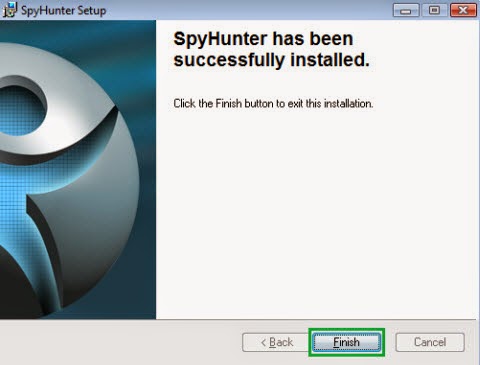
2) Install Spyhunter Step by Step:


3) Start a full and quick scan with SpyHunter .
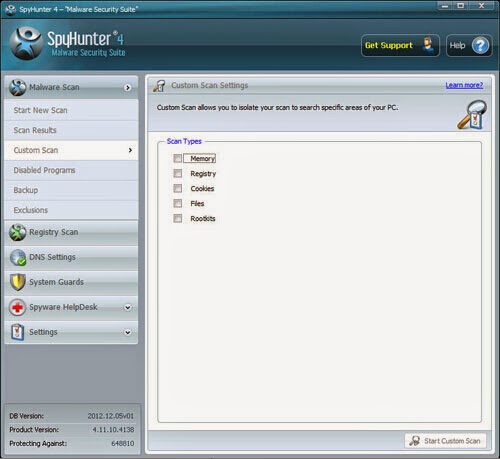

4) Remove detected threats.


Conclusion 
As a troublesome virus, System Care Antivirus 3.7.32 brings plenty of threats. On one hand, this virus can attack your computer. On the other hand, it can produce other destructive virus to break your computer. Once you notice the sign of its trace, you should eliminate it as soon as you can. Otherwise, System Care Antivirus 3.7.32 will generate greater effect.

Suggestion
I recommend you to download Anti-Malware program SpyHunter to get System Care Antivirus 3.7.32  out of your computer. It will make you face less difficulty and risk. Besides, SpyHunter is effective enough to remove System Care Antivirus 3.7.32 . Thus, it can be a preferred choice for you.

Thursday, April 11, 2013

How to Uninstall Windows Command Processor?- Manual Removal Guide

Can’t recall when and how Windows Command Processor virus lurk into your computer? Have no idea about how to uninstall it completely? Have tried your best to remove it, but end with no avail? This post will offer step-by-step removal guide to help you get rid of it. Meanwhile, the best Windows Command Processor removal solution is also recommended here, which is to download the most trusted and popular Antivirus program - SpyHunter to get rid of the unwanted program.


Analysis of Windows Command Processor

Windows Command Processor is a rogue anti-spyware program. Once executed, it keeps popping up to ask permission to open windows command processor. Clicking cancel won’t stop such pop up for it comes again within a second, which is really irritating. Besides, Windows Command Processor may bring other computer threats like Trojan as well. What drives you crazy is that your antivirus program like AVG, Malware bytes can’t stop Windows Command Processor pop up. When you want to run them as usual, just end with nothing. When you click yes to run Windows Command Processor, it will perform as legitimate ones to scan your computer and list plenty of threats, but those threats are all fake. It claims that you need to download and install Windows Command Processor for turning your computer to be what it should be. Just like any other rogue malware, the aim is to lure you to pay for the advised programs.

When you keep on getting Windows Command Processor pop up, what you should do should be searching and removing corrupt files of Windows Command Processor to eradicate it but not paying any program. Since your antivirus program can’t deal with it, you should try manual steps for removal.

Damage of Windows Command Processor

• It can run automatically by adding a new registry entry.
• Once executed, your computer will keep on receiving Windows Command Processor pop up.
• It may bring or invite other computer threats.
• It may disable your antivirus programs or anti-spyware.
• It will slow down computer performance.
• It may make the computer freeze frequently.


Reliable Steps For Windows Command Processor Removal

Well, many computer users have a hard time to deal with Windows Command Processor for their antivirus programs can’t do auto removal. The most effective way to deal with it is by manual removal. Here are the detailed instructions:
Step 1: Press Ctrl+Alt+Del keys together and end all Windows Command Processor processes in the Windows Task Manager.
random.exe

Step 2: Remove all the associated files of Windows Command Processor:
%AppData%\Local\[random].exe
%AppData%\Roaming\Microsoft\Windows\Templates\[random]
%Temp%\[random]
%UserProfile%\Desktop\Windows Command Processor.lnk
Step 3: Open the Registry Editor, remove all these Registry Entries created by Windows Command
Processor.
 

(Click Start button> click "Run" > Input "regedit" into the Run box and click ok)
HKEY_CURRENT_USER\Software\Classes\.exe “(Default)” = ‘exefile’
HKEY_CURRENT_USER\Software\Classes\.exe “Content Type” = ‘application/x-msdownload’
HKEY_CURRENT_USER\Software\Classes\.exe\DefaultIcon “(Default)” = ‘%1? = ‘”%UserProfile%\Local Settings\Application Data\[random].exe” /START “%1? %*’

Note: To someone who has little knowledge about virus removal, above instructions will be complicated; To someone who hasn’t sufficient expert skills, you may meet with lots of difficulties even make the system unavailable in the end. The safe and convenient way to help you out will be using the automatic virus remover to terminate Windows Command Processor and remove each of its files and registry entries completely. Moreover, effective virus remover like SpyHunter can also protect your computer and prevent the future virus attacks automatically.

Monday, December 31, 2012

How to Remove Win7 Defender

You may think that Win7 Defender can protect your computers against different kinds of threats like malware, spyware, worm, etc. You are wrong, Win 7 Defender, although it looks and acts like a genuine antivirus program, it is rogue security software being installed by Trojan FakeRean. For cheating and gaining profile from computer uses, this trojan chooses randomly names as follows: Win 7 Security, Win 7 Defender, Win 7 Defender Pro, Total Win 7 Security, Win 7 Smart Security 2010, Win 7 Internet Security, Win 7 Security Tool, Win 7 Antimalware, Antispyware Win 7. If you want to learn more about Win7 Defender or the removal steps,just read the following post.

Learn More About Win7 Defender


Win7 Defender is rogue security software, it disguises as real antivirus program, antispyware or registry cleaners. What is the main behavior of this virus? By fake scanning and listing lots of alters to scare and convince user to buy full version software for getting rid of all the listed threats, which is also the main sales tactic. All the alerts are fake, what they want is money. They will run with your money, leaving your issue unsolved. Besides, by altering your registry entries, it can launch automatically whenever you start Windows. Then, it runs fake system scans and lists various computer threats. It is recommended that you should pay for the latest version for solving the issues. Do not take in, you should delete it immediately once you find it.


Possible Damage Will Cause By Win7 Defender?


*fake system scans
*blood of fake alerts
*stop you from running any other security programs
*adds other computer threats like malware, Trojan, adware, etc.
*gain difficulty to delete

Removal Guides of Win7 Defender


Step 1. Get into the Safe Mode with Networking


Reboot your computer. As the computer is booting but before Windows launches, tap the “F8 key” continuously which should bring up the “Windows Advanced Options Menu” as shown below. Use your arrow keys to highlight “Safe Mode with Networking” option and press Enter key.


Step 2. Open Windows Task Manager and close all running processes.


Use CTRL+ALT+DEL combination to open Task Manager


Please stop all the following processes.
random.exe

Step 3. Delete all related files and registry values in your local hard disk C.


Files:
%AllUsersProfile%\{random}
%AllUsersProfile%\Application Data\.dll
%AllUsersProfile%\ Application Data\.exe
%ProgramFiles%\random.exe
Registry values:
HKEY_LOCAL_MACHINESOFTWAREClassesCLSID{89721a77-988b-43cb-81e4-89c101e44f15}InprocServer32
HKEY_LOCAL_MACHINE\SOFTWARE\Microsoft\Windows NT\CurrentVersion\Winlogon\[random]
HKEY_LOCAL_MACHINE\SOFTWARE\Microsoft\Windows\CurrentVersion\policies\Explorer\Run\[random]
HKEY_USERS\.DEFUALT\Software\Microsoft\Windows\CurrentVersion\Internet Settings\[random]
HKEY_LOCAL_MACHINE\SOFTWARE\ControlSet001\Services\svflooje\Enum\[random]


Step 4. Get rid of Win7 Defender with automatic way


1) Click the following red icon to install Spyhunter.
 
2) Install Spyhunter Step by Step:


3) Execute a full scan with SpyHunter and remove all detected threats.


4) Remove associated programs.


Attention
Although manual method can remove Win 7 Defender, the manual removal process is a bit risky and complicated. It is not worthy of taking risk of losing some important information. And to ensure with the safety and thoroughness, you can download Anti-Malware program SpyHunter to prevent your computer from more serious effect.